CP Management
Summary
CP Management lets you review critical-path progress on shared orders and post notes or messages for Merchandising. You can open Needs Attention, Dashboard, CP Grid, Orders, and Contacts, where you save the SpringNE people you message and override that on individual orders. You cannot edit planned or actual dates, use Reminders, create CP records, or export.
How to
Open the app
- Sign in to Spring Hub.
- Click CP Management (lands on Needs Attention by default).
- Use the left navigation (or mobile menu) to move between the areas below.
Language (EN / TR)
- In the CP Management header, use the EN / TR control to switch the app language.
- Your choice is remembered for next visits (browser cookie).
- Labels, buttons, and outreach message templates follow the selected language. Order data from CRM (PO, style, quantities, party names) and text you typed in notes or messages stay in their original language.
Needs Attention
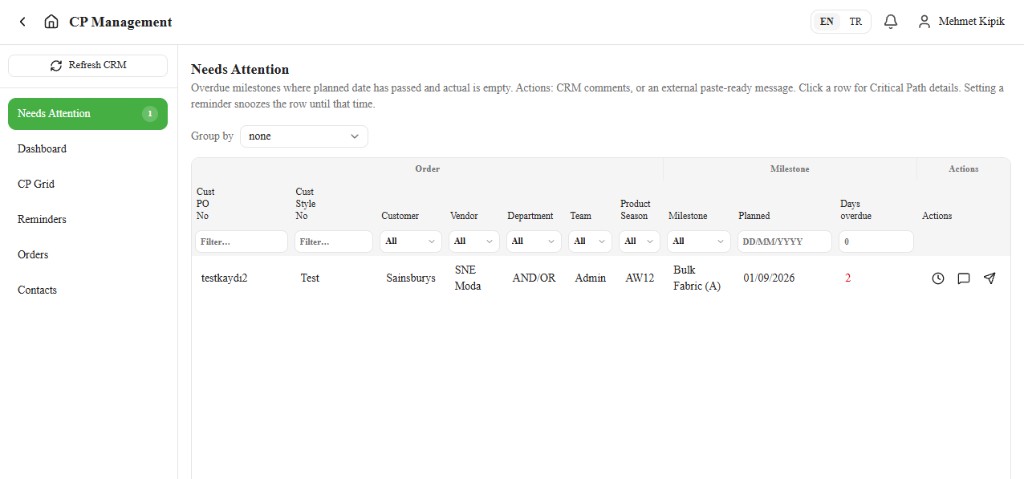
Overdue milestones on your account that need follow-up.
- Open Needs Attention.
- Read Days overdue for open milestones (planned in the past, no actual yet). The list is ordered highest Days overdue first. Columns include PO, Style, Customer, Vendor, Department, Team, Product Season, Milestone, Planned, and Days overdue.
- Filter and sort like the CP Grid: click a header to sort; use the filter row to search text columns or pick values for Customer, Vendor, Department, Team, Product Season, and Milestone. Use Group by above the table to choose the grouping. Order (the default) shows one row per order with its details, the earliest Planned date, and the highest Days overdue; click N delayed dates on the row to expand that order's delayed milestones. You can also group under Milestone, Customer, Vendor, Department, Team, or Product Season. Planned dates show as DD/MM/YYYY.
- Open comments, or use External message for paste-ready outreach to Merchandising.
- Click a row (outside the N delayed dates button) to open the order's Critical Path details.
When there are no overdue items, the page shows No overdue milestones — all clear.
You cannot edit dates from this view — contact your merchandiser if a date looks wrong.
Dashboard
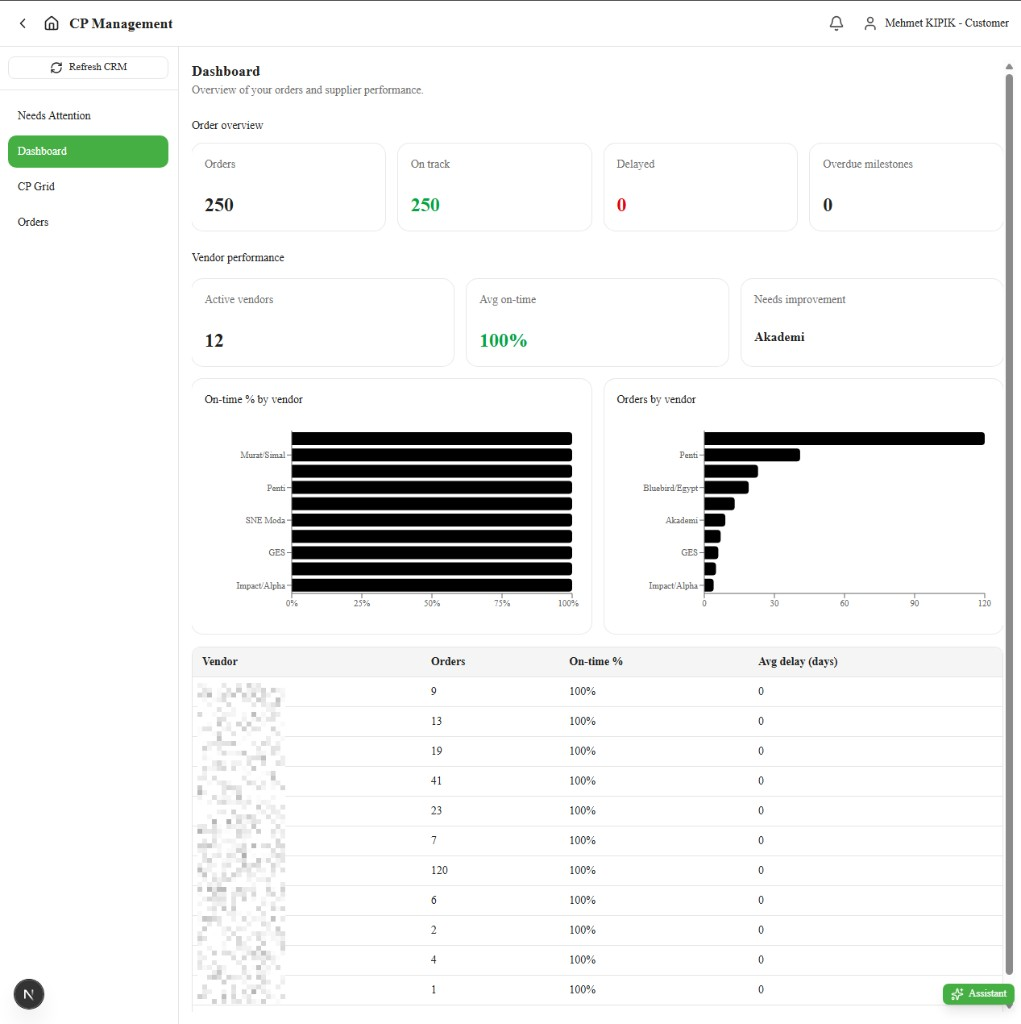
Overview of critical-path health for your orders — summary cards and performance.
- Open Dashboard.
- Review Order overview cards (orders, on track, delayed, overdue milestones).
- Review vendor performance charts and the performance table.
CP Grid
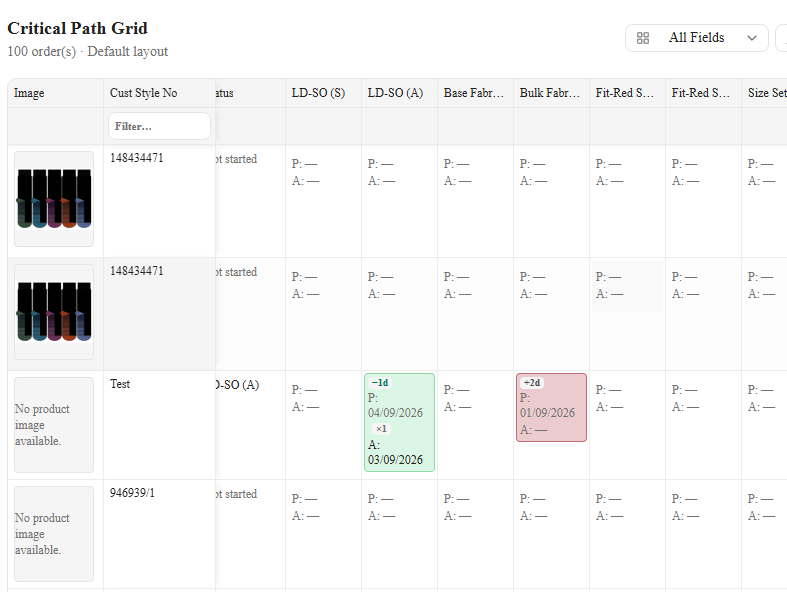
View milestone dates (read-only) and open order details / messages.
- Open CP Grid (page title Critical Path Grid).
- Use the View dropdown — Default shows curated milestone columns; All shows every column (including optional milestones such as Wash). Built-in views cannot be edited; use New view for a custom layout.
- Optionally click Columns on a custom view to show/hide or reorder columns, or Hide Sending columns (show Approval only). Preferences stay in your browser.
- Read planned / actual dates, colours, and day badges (you cannot edit cells). Dates display as DD/MM/YYYY.
- Click a row to open order and product details, Critical Path dates, and notes / messages.
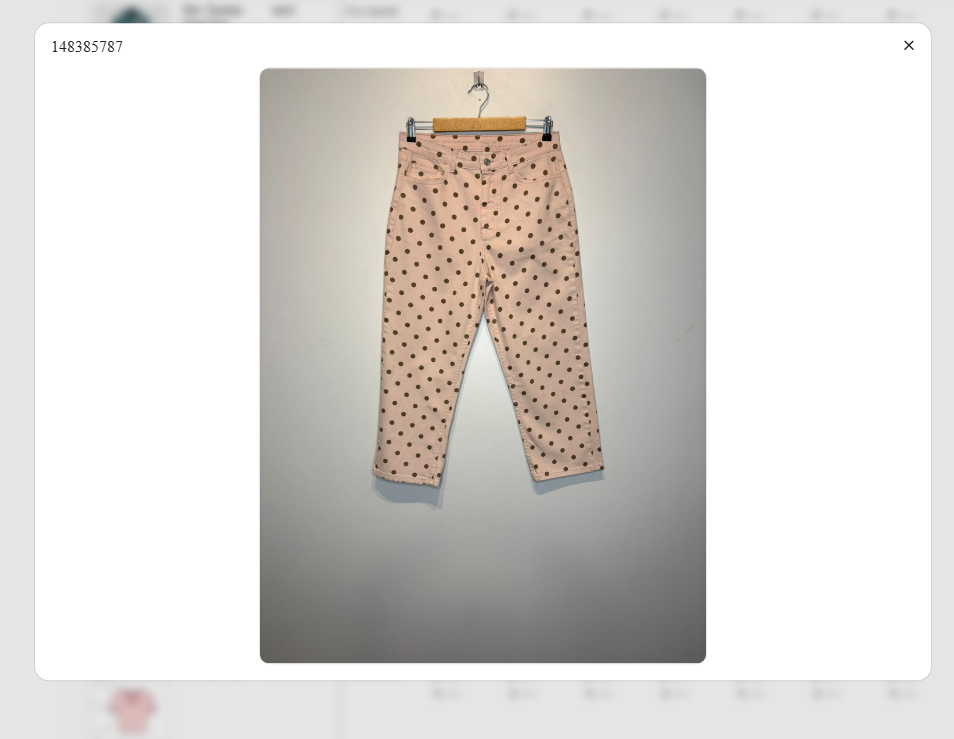
- In the order detail view, click the product image (Click image to enlarge) to open it in full view.
Sort and filter
- Click a column header to sort. Click again to reverse; a third click clears the sort.
- Type in the filter row under a product / order column to narrow rows.
- Some columns (for example Supplier / Factory or Transport / Shipment Mode) open a dropdown. Tick one or more values. Select all ticks every option; Clear (or untick all) shows every row again. Empty values appear as (Blank).
What the colours and badges mean
| Look | Meaning |
|---|---|
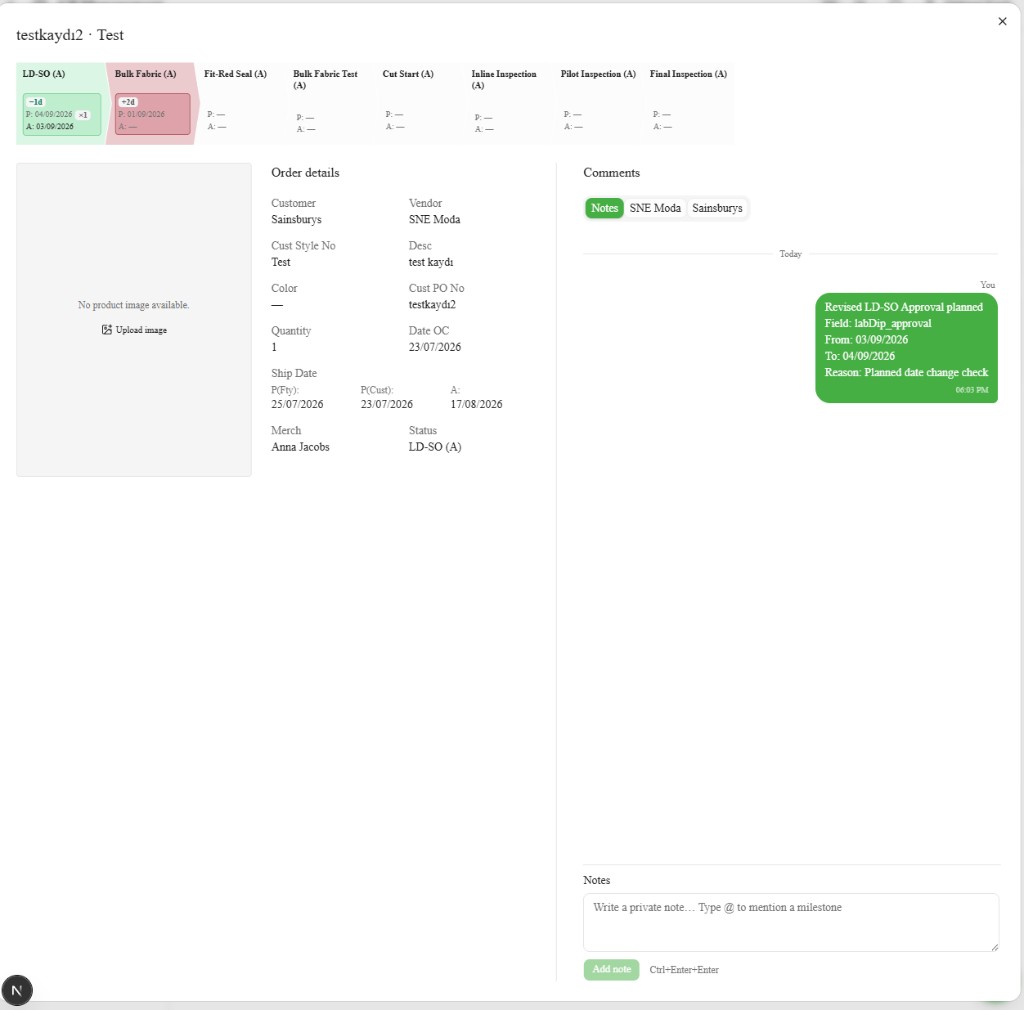
| Green fill + −Nd | Early (actual before planned) |
| Red / pink fill + +Nd | Late or overdue |
| Yellow | Planned is today, no actual yet |
| No fill | Not started or planned still in the future |
| ×N | How many times the actual was revised by Merchandising / vendor |
Order detail (row click)
Click an order row on the CP Grid (or from Orders / Needs Attention) to open the detail view. It shows:
- Product image and order / product details
- Critical Path dates along the top (planned and actual)
- Notes / messages on the right
Notes and messages
- In the detail view, use Notes & messages.
- Notes — private to your customer team.
- SpringNE tab — shared message thread with SpringNE (everyone on the thread can read it).
- Under To, choose which SpringNE employees get the in-app / push notification. When you have saved Contacts, the list is filled in from there; otherwise pick at least one person before you send. You cannot send with an empty To list.
- Type @ in a note or message to mention a milestone — that text then appears above Revision history when someone opens Edit milestone dates for that column.
- External message (Needs Attention) — paste-ready outreach.
What you write appears in the thread as soon as you send it, slightly faded until it is stored, and the box clears so you can keep typing. If it cannot be posted, it is removed from the thread and the reason shows under the message.
Orders
Order-level views for your account.
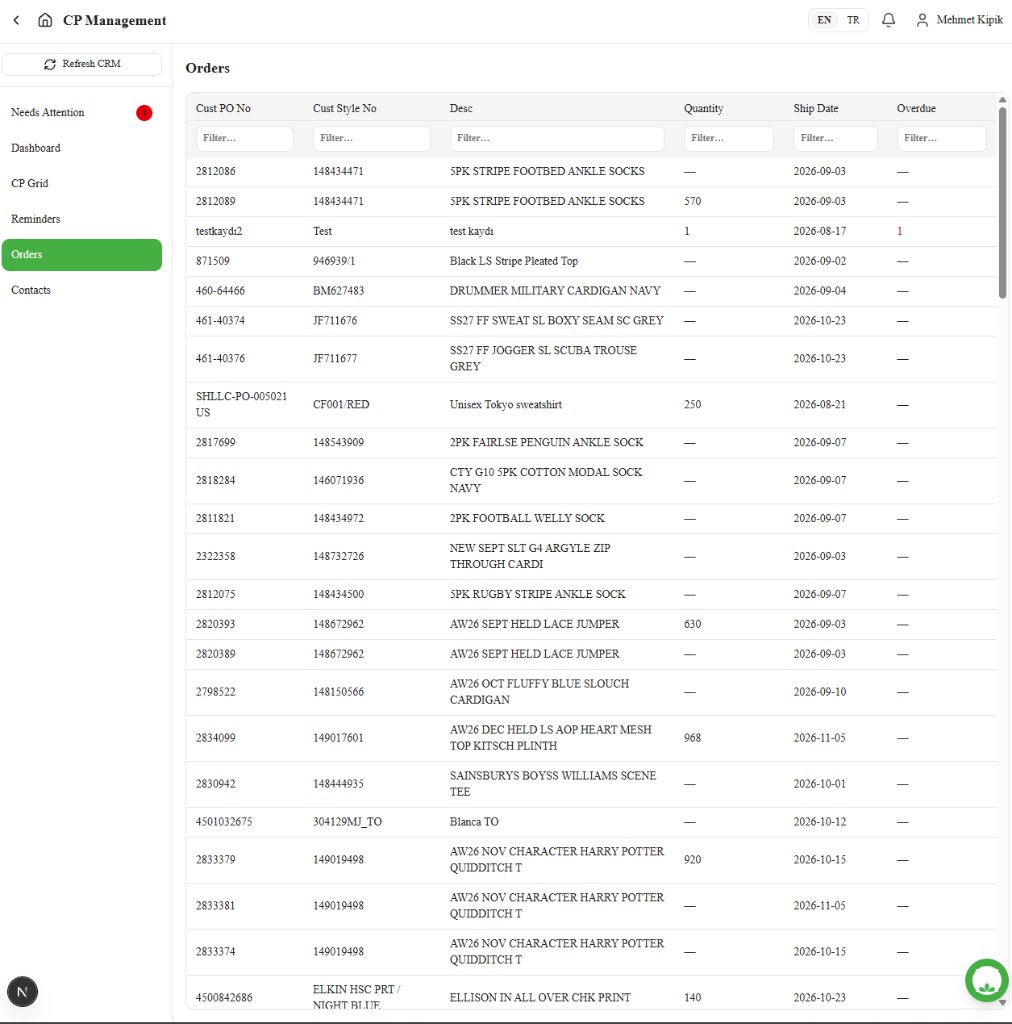
- Open Orders.
- Filter by PO, Style, Description, Qty, Ex-factory, or Overdue as needed.
- Open an order for more detail (same order detail view as above).
Contacts
Decide once which SpringNE people you message, instead of picking them every time you send. Your choices are personal — they do not change what your colleagues see.
- Open Contacts.
- SpringNE is listed as one row with the contacts you message and the number of orders under it.
- Use the search box to narrow the orders to a specific PO, style, or description.
Set your SpringNE contacts
- Click Set contacts.
- Type at least three letters to search SpringNE employees, pick the people, and click Save contacts.
All your orders now use those contacts.
Override a single order
Do this when one order needs different people from the rest.
From the order drawer:
- Open the order and go to the Messages tab.
- Change the To list.
- Click Always use for this order next to the list. Skip this step if the change is only for the message you are about to send.
From Contacts:
- Expand SpringNE to see your orders.
- Tick the orders, click Override contacts, pick the people, and click Save contacts.
Overridden orders show an Override tag; the rest show Company contacts.
Go back to your usual contacts
- In the order drawer, click Use company contacts next to the To list.
- On Contacts, expand SpringNE, tick the orders, click Use company contacts, and confirm.
Where contacts are used
The To list on the SpringNE thread arrives filled in from Contacts. Changing it without clicking Always use for this order applies to that message only.
Exceptions and Escalation
If dates look wrong, comment or contact your merchandiser — do not expect to edit cells. Escalate access issues to SpringNE Merchandising / IT.
Related articles
- CP Management — Order Management process
- Guests