Designer Selections Recap
Summary
Designer Selections Recap lets you review selection sheets Merchandising has shared for your account. Confirm or drop products, comment on items, then mark Approved by Customer when the selection is final.
How to
Open the app
- Sign in to Spring Hub.
- Click Designer Selections Recap.
Selection home
Browse shared sheets for your account.
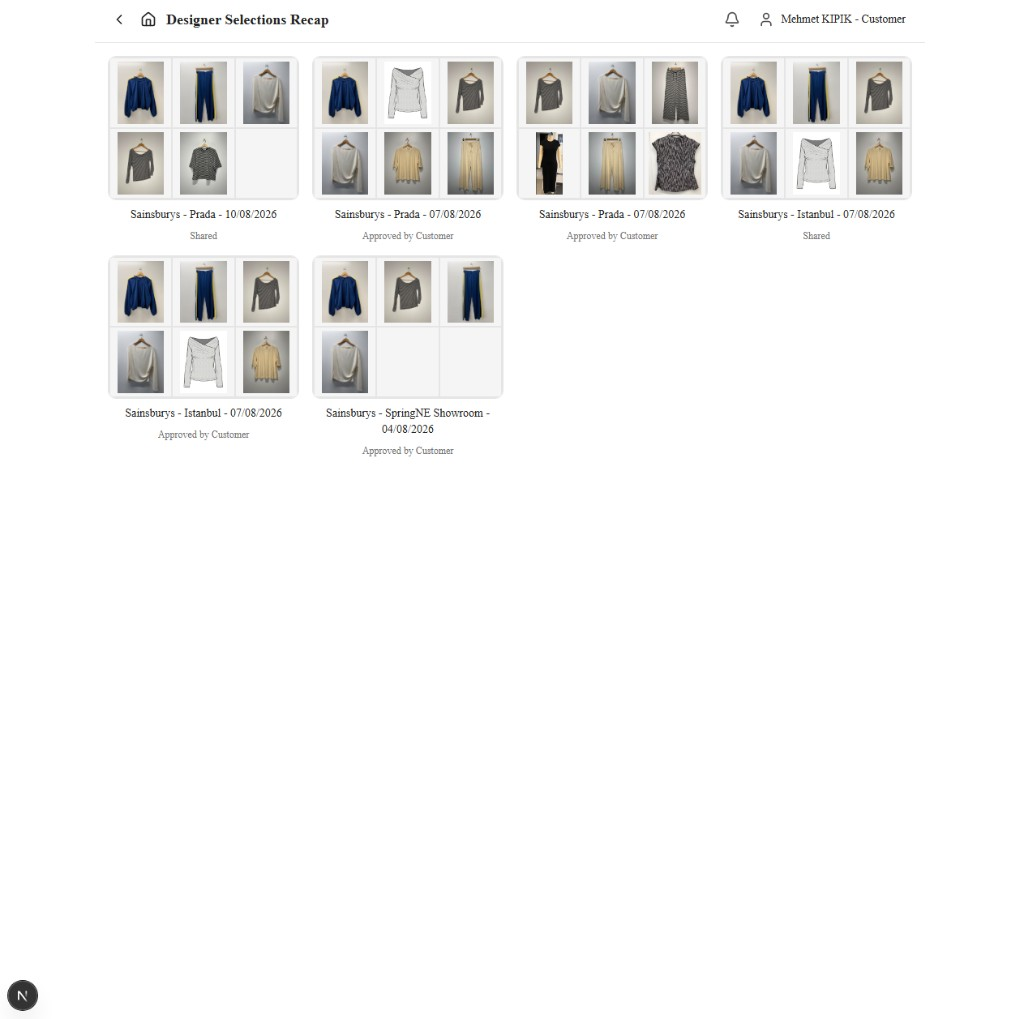
- Review the card grid (only Shared and Approved by Customer sheets appear).
- Open a shared sheet to work inside it.
What the statuses mean
| Status | What it means for you |
|---|---|
| Shared | Merch has released the sheet. You can Confirm / Drop products, leave Comments, and approve when ready. |
| Approved by Customer | The selection is finalised. Confirm / Drop is locked. You can still view details and comment on confirmed products; dropped products are view-only (no new comments). |
Selection sheet
Confirm or drop items, then approve.
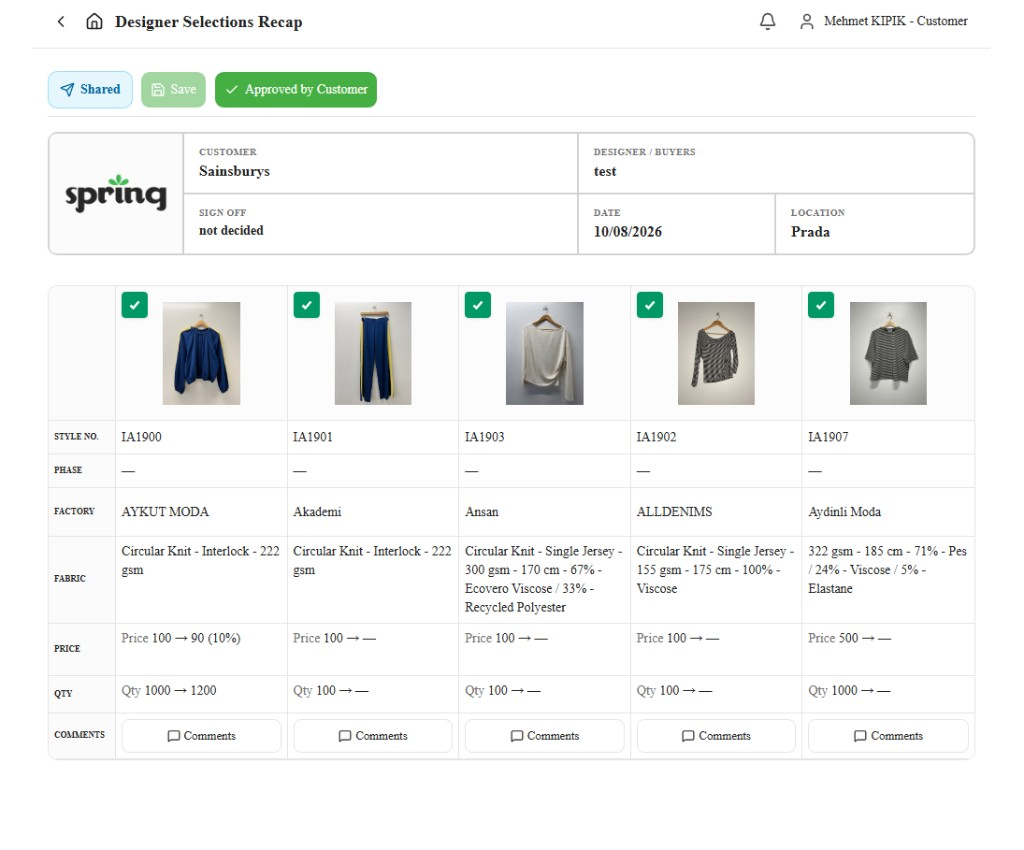
- Review products Merch added (styles and any bought shopping samples). The sheet header (customer, date, location) starts collapsed so products stay in view — click the header bar to expand it.
- On each product image, use the checkbox: checked = Confirmed, unchecked = Dropped.
- Each tick is stored on its own
- Start commenting on selection items — open Comments on a product to discuss with Merchandising.
- When finished, click Approved by Customer to finalise the selection. The sheet switches to the finalised view at once and the change saves in the background.
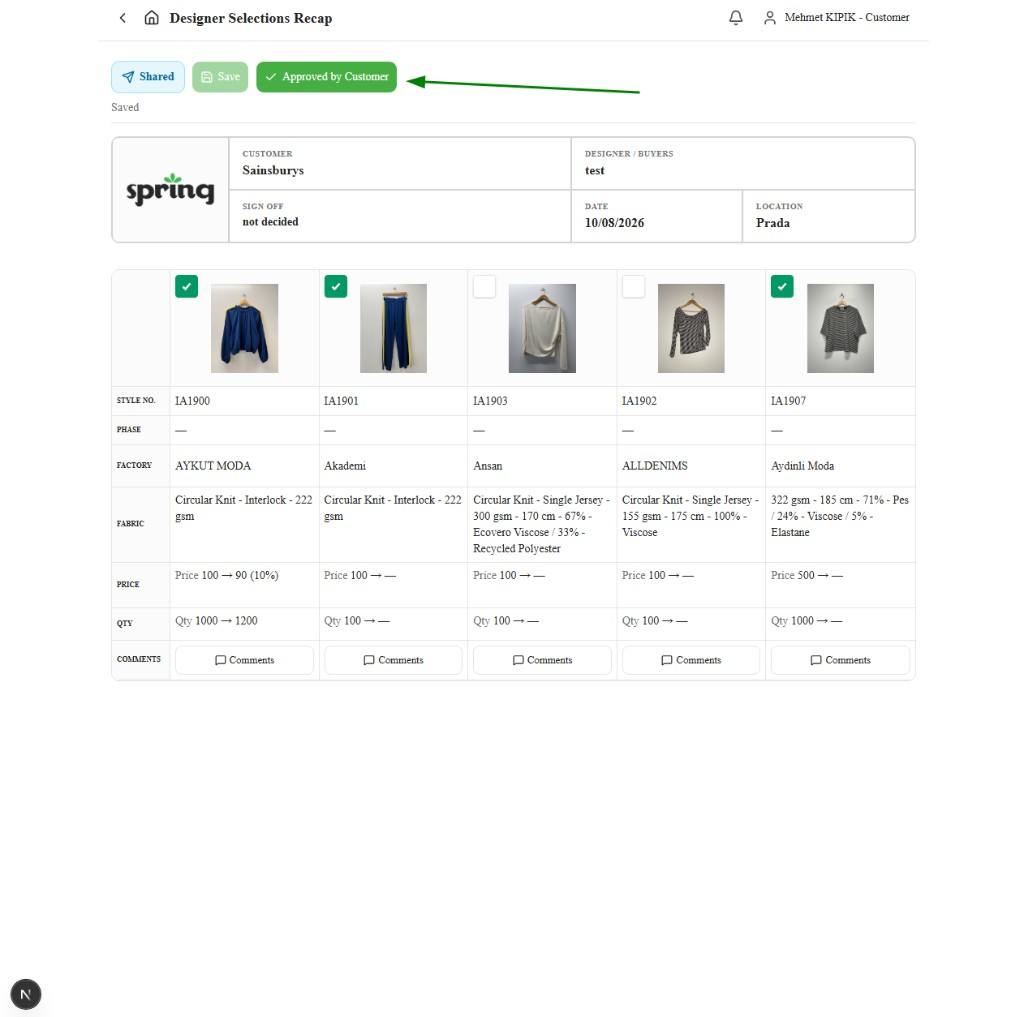
After Approved by Customer
The sheet focuses on selected (confirmed) items. Confirm / Drop is locked. Switch layouts with the Chat / Table toggle.
| View | What you see |
|---|---|
| Chat | One card per selected product — details, comment thread, and Add comment. |
| Table | A grid of selected products with Image, Product name, Phase, Factory, Fabric, Price, Qty, and Comments. |
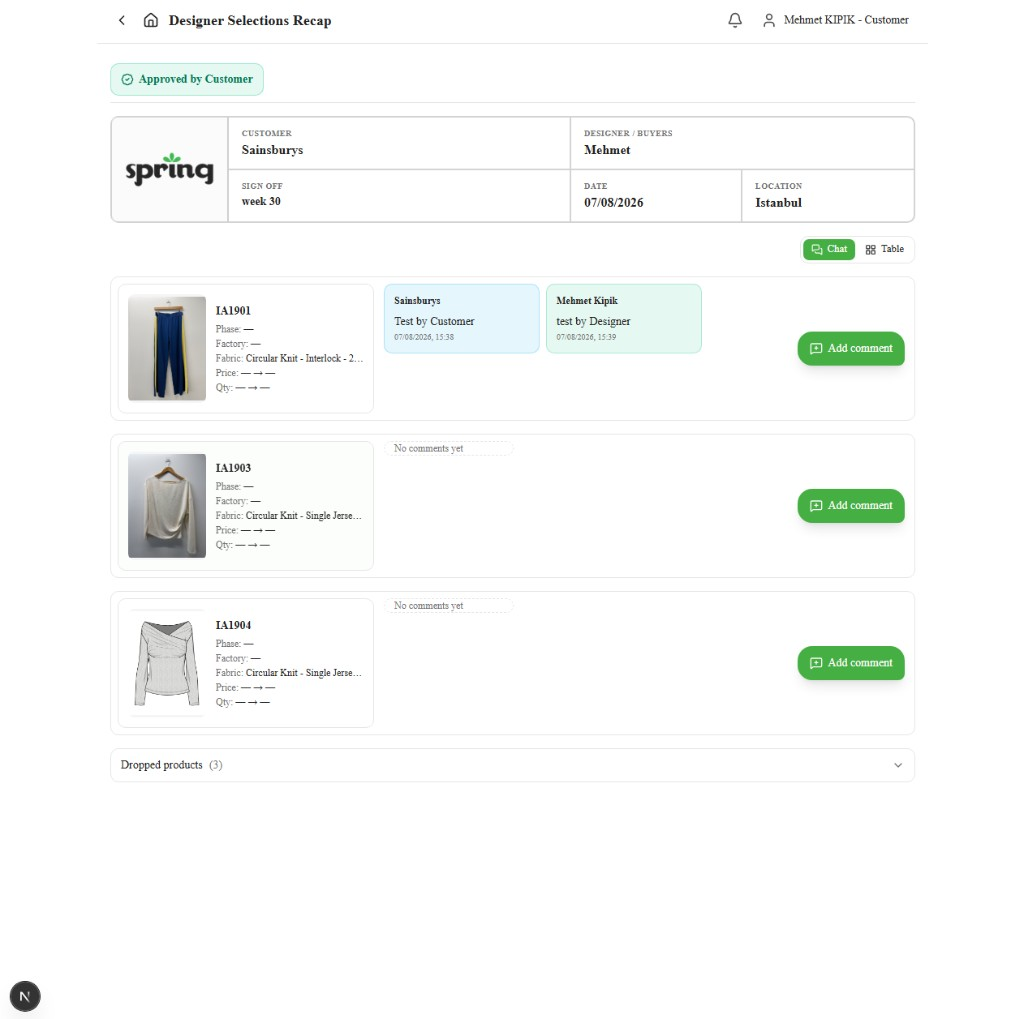
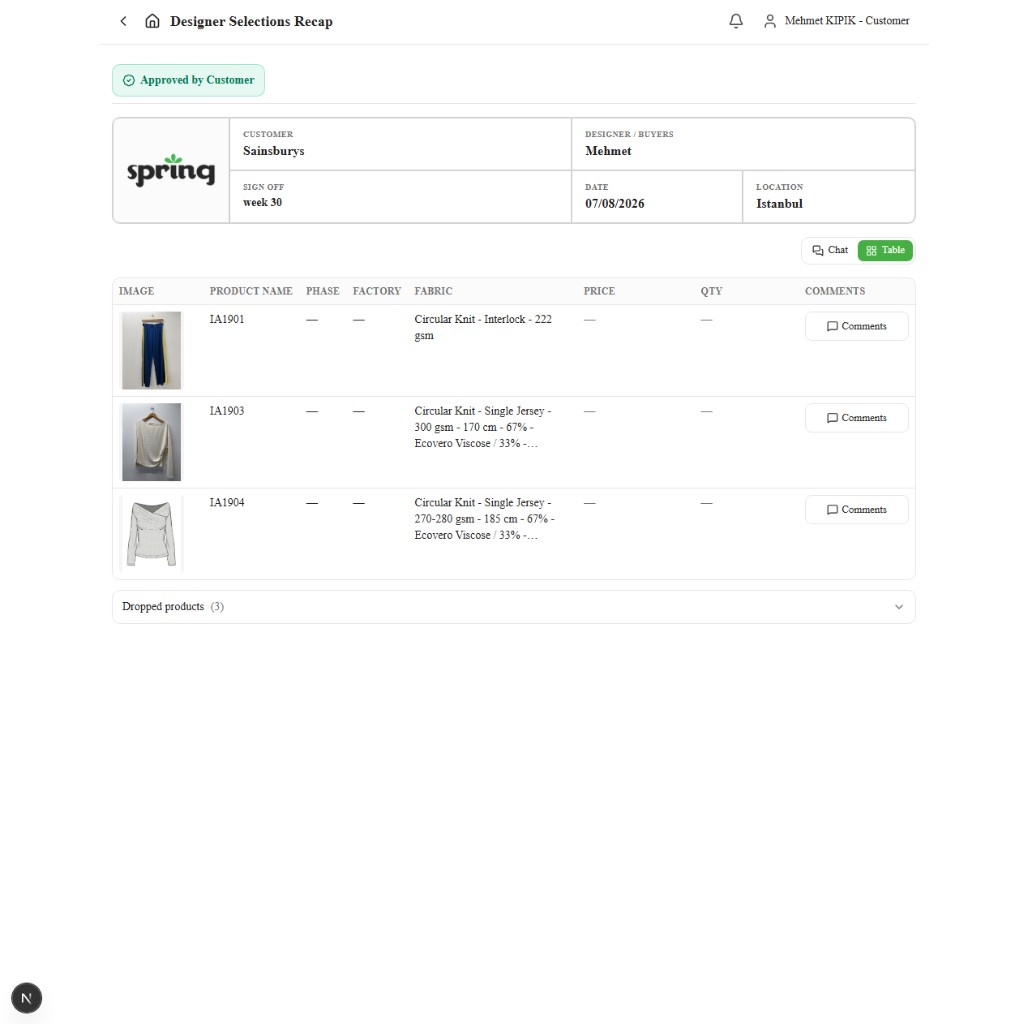
Selected products — what you can still do
On confirmed items you can:
- See product details — style / image, Phase, Factory, Fabric, Price, and Qty on the card (Chat) or in the row (Table).
- Add a comment — click Add comment (Chat) or Comments (Table) to open the thread and continue discussion with Merchandising. Your message appears in the thread as soon as you click Send
- Read existing comments — your messages appear in blue; Merch messages appear in green.
If a message cannot be delivered, it is removed from the thread and the reason shows under the product.
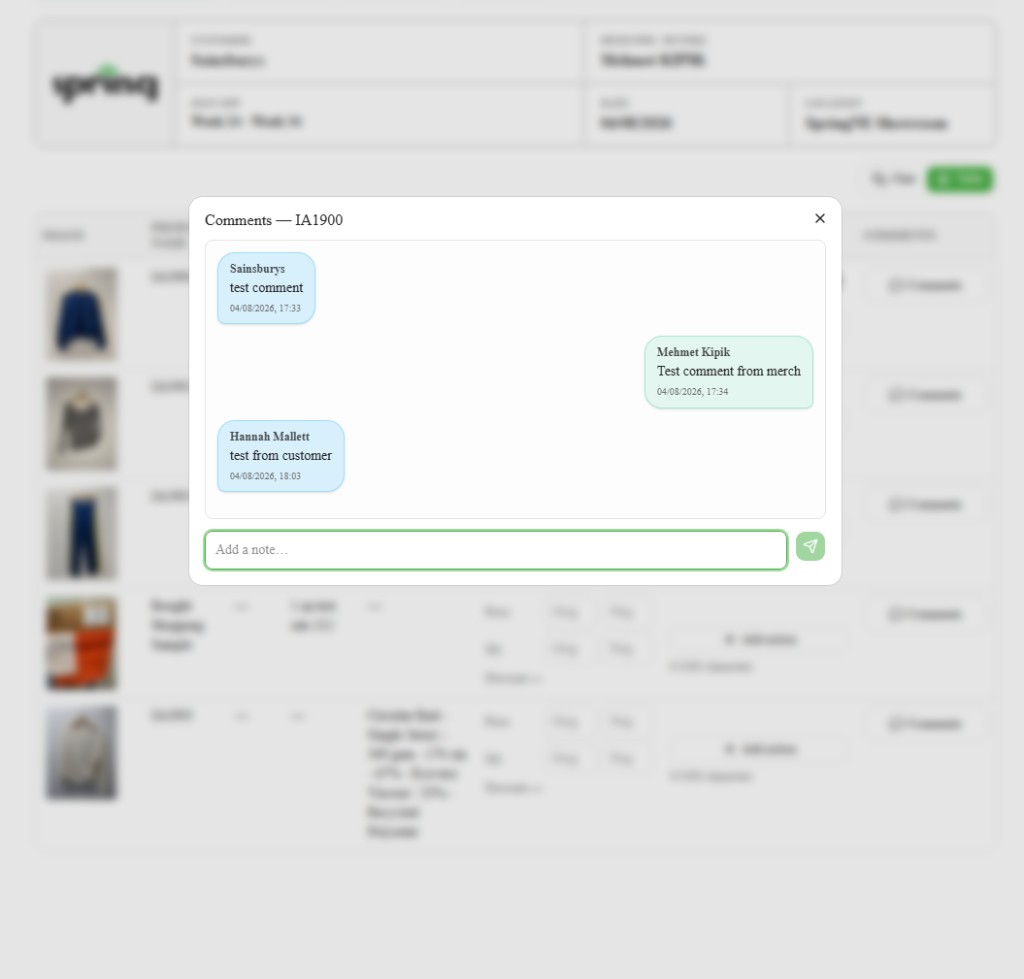
Dropped products
Dropped items move out of the main list into a collapsed Dropped products (N) bar at the bottom.
- Expand the bar to review what was dropped.
- Dropped products are not editable.
- You cannot leave new comments on dropped products (existing comments stay visible for reference).
Collection item details (what you see)
| Field | Meaning |
|---|---|
| Style / image | Product style, or bought shopping sample |
| Phase | Planned phase for the item |
| Factory | Factory / vendor assigned by Merch |
| Fabric | Material description |
| Price | Original / negotiated price, with discount when both set |
| Qty | Original / negotiated approximate quantity |
| Comments | Your discussion thread with Merch |
Exceptions and Escalation
If no sheets appear, ask Merchandising to Mark as Shared. Links still require sign-in. Escalate login issues to IT.