Designer Selections Recap
Summary
Designer Selections Recap shows selection sheets Merchandising has shared for your factory. Open a sheet to review products assigned to you and reply on the Factory comment thread. You cannot create sheets, add or remove products, Confirm / Drop, see customer comments or pricing, edit pricing, change status, or export.
How to
Open the app
- Sign in to Spring Hub.
- Click Designer Selections Recap.
Selection home
Browse shared sheets for your factory.
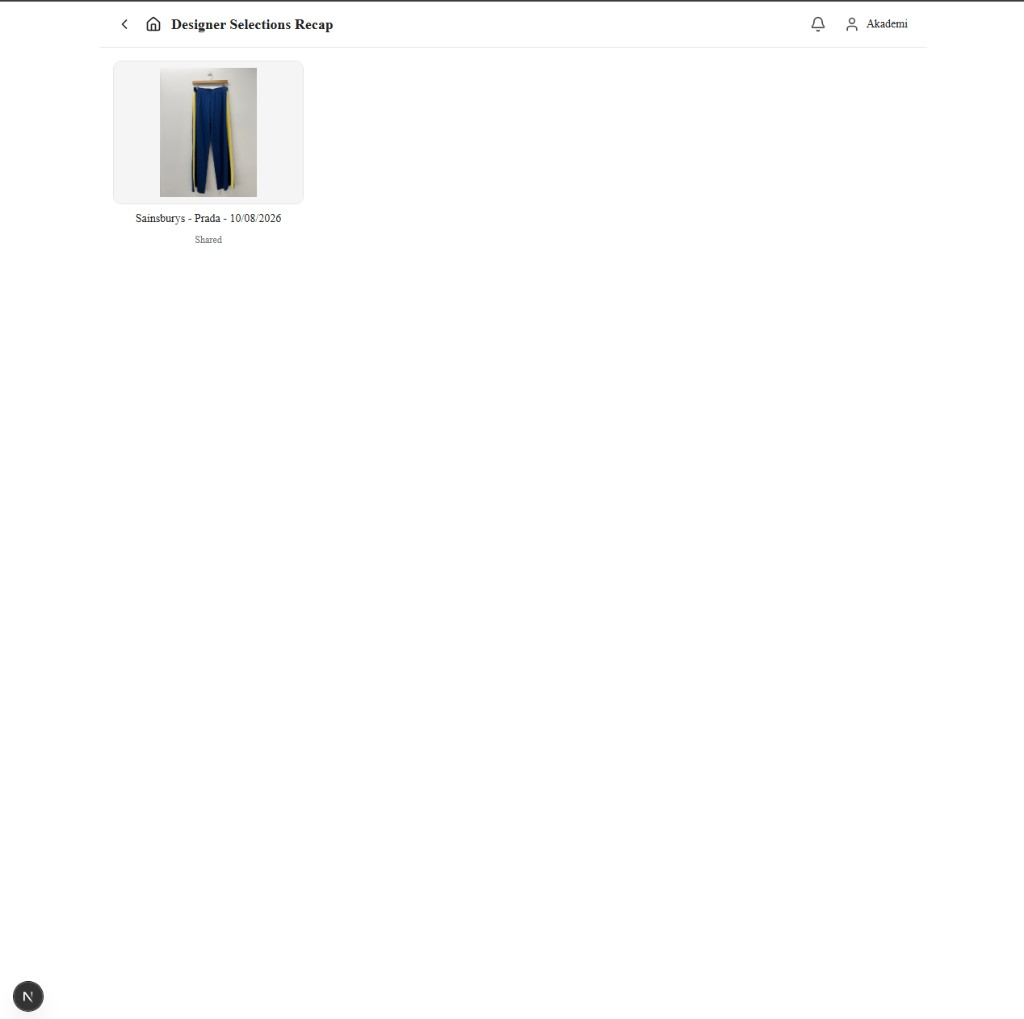
- Review the card grid (customer / location, date, and status such as Shared).
- Open a card to view that sheet. If none appear, Merchandising has not shared a sheet that includes your factory yet.
What the statuses mean
| Status | What it means for you |
|---|---|
| Shared | Merch released the sheet; you can review products for your factory and comment on the factory thread. |
| Approved by Customer | Customer sign-off is complete; the product list is finalised. You can still comment on confirmed products. Dropped items may appear under a collapsed section. |
Draft (Active) sheets are not visible to you.
Selection sheet
Review products assigned to your factory, then comment with Merchandising.
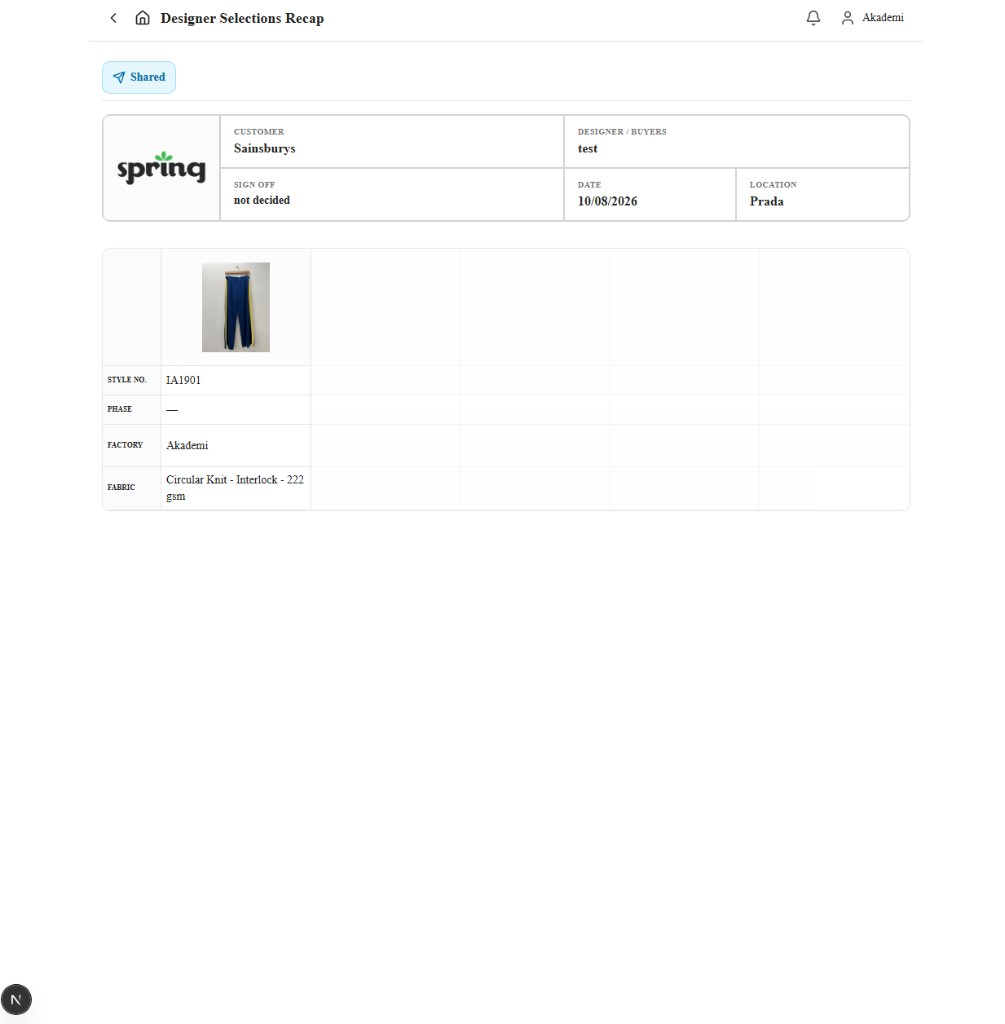
- Open the sheet from the home grid. The sheet header starts collapsed so products stay in view — click the header bar to expand customer, date, and location.
- Review each collection item:
- Style no. / image
- Phase
- Factory
- Fabric
- Open Comments on a product to discuss with Merchandising (factory thread). Your message appears as soon as you click Send.
- After Approved by Customer, use the Chat / Table toggle to follow factory comments across products.
- Pricing, Actions, and Confirm / Drop are not available on this view.
- Contact Merchandising if something looks wrong.
Factory comments
Factory comments are separate from customer discussion — you never see customer messages or pricing.
- Click Comments on a product (or Add comment in Chat view).
- Type your note and click Send. Merchandising receives a notification.
- Reply when Merchandising posts on the factory thread. Your messages appear in amber; Merchandising in green.
- You cannot comment on Dropped products. If Comments is unavailable, Merchandising may not have assigned your factory on that item yet.
Exceptions and Escalation
If a sheet you expect is missing, ask Merchandising to share it and assign your factory. Escalate login issues to IT.