Spring Hub
Summary
Open Spring Hub at https://app.springne.com, sign in with your Microsoft work account, use Your apps to open mini-apps and external tools, and use the header Notifications bell to follow CP and Selections activity.
What Spring Hub provides
| Mini-app | Opens | Guide |
|---|---|---|
| Sample Inventory | In-app | Sample Inventory |
| Expenses | In-app | Expenses |
| Fabric Library | In-app | Fabric Library |
| Designer Selections Recap | In-app | Designer Selections Recap |
| CP Management | In-app | CP Management |
| Inspection Reports | In-app | Inspection Reports |
| Risk Assessment | In-app | Risk Assessment |
| Test Report Check | In-app | Test Report Check |
| Showroom / Print Library | External | Opens in a new browser tab |
| CRM / SOP | External | CRM app and this SOP site |
Some tiles may show as Coming soon until they are released (for example Garment Inspection). Inspection Reports is staff-only (Microsoft sign-in); when the tile is active, use the guide linked above.
How to
1. Open Spring Hub
- Go to https://app.springne.com.
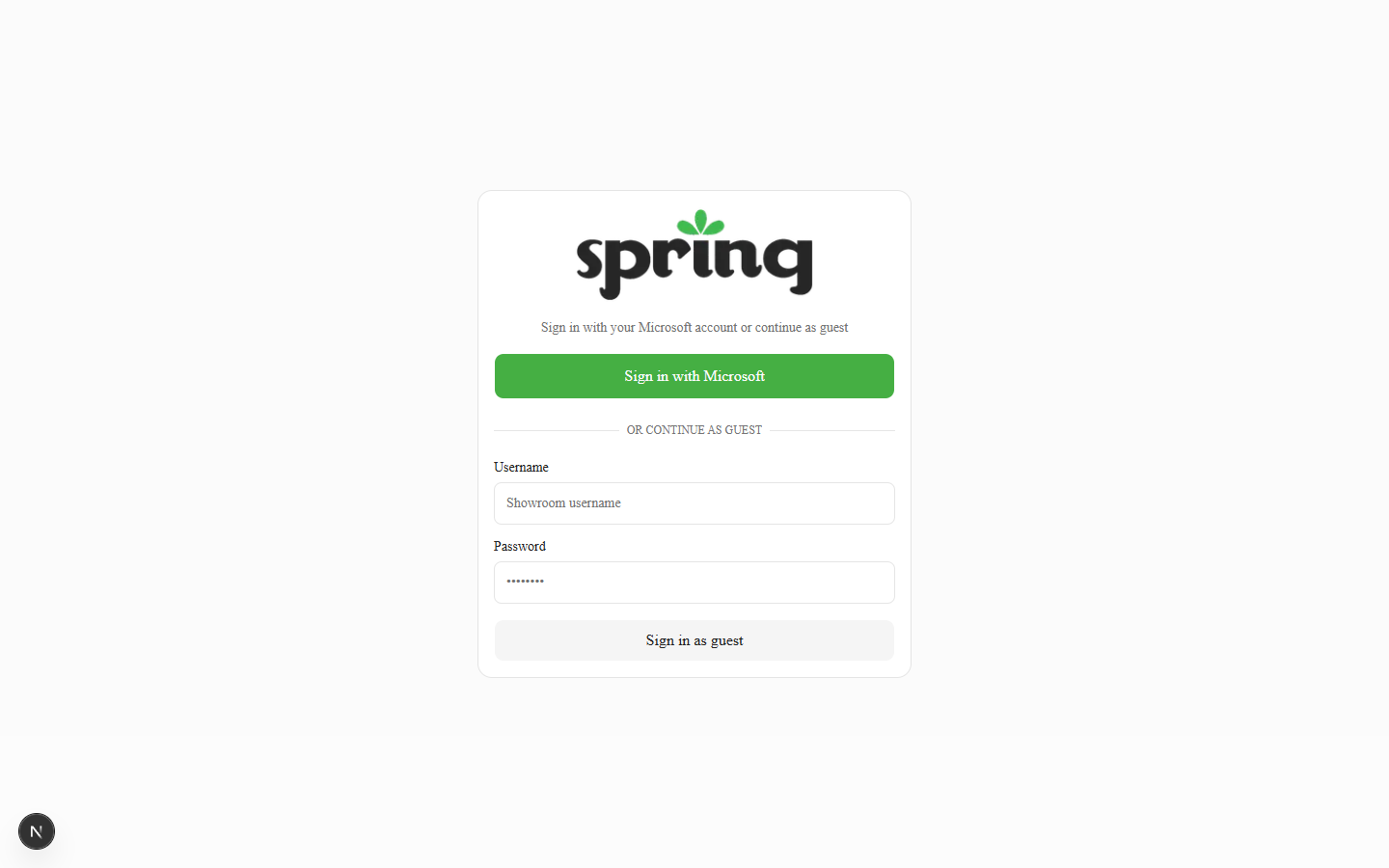
- If you are not signed in, you are taken to the sign-in page.
2. Sign in with Microsoft
- Click Employee login.
- Complete your usual work account and multi-factor prompts.
- After redirect, you land on the home launcher.
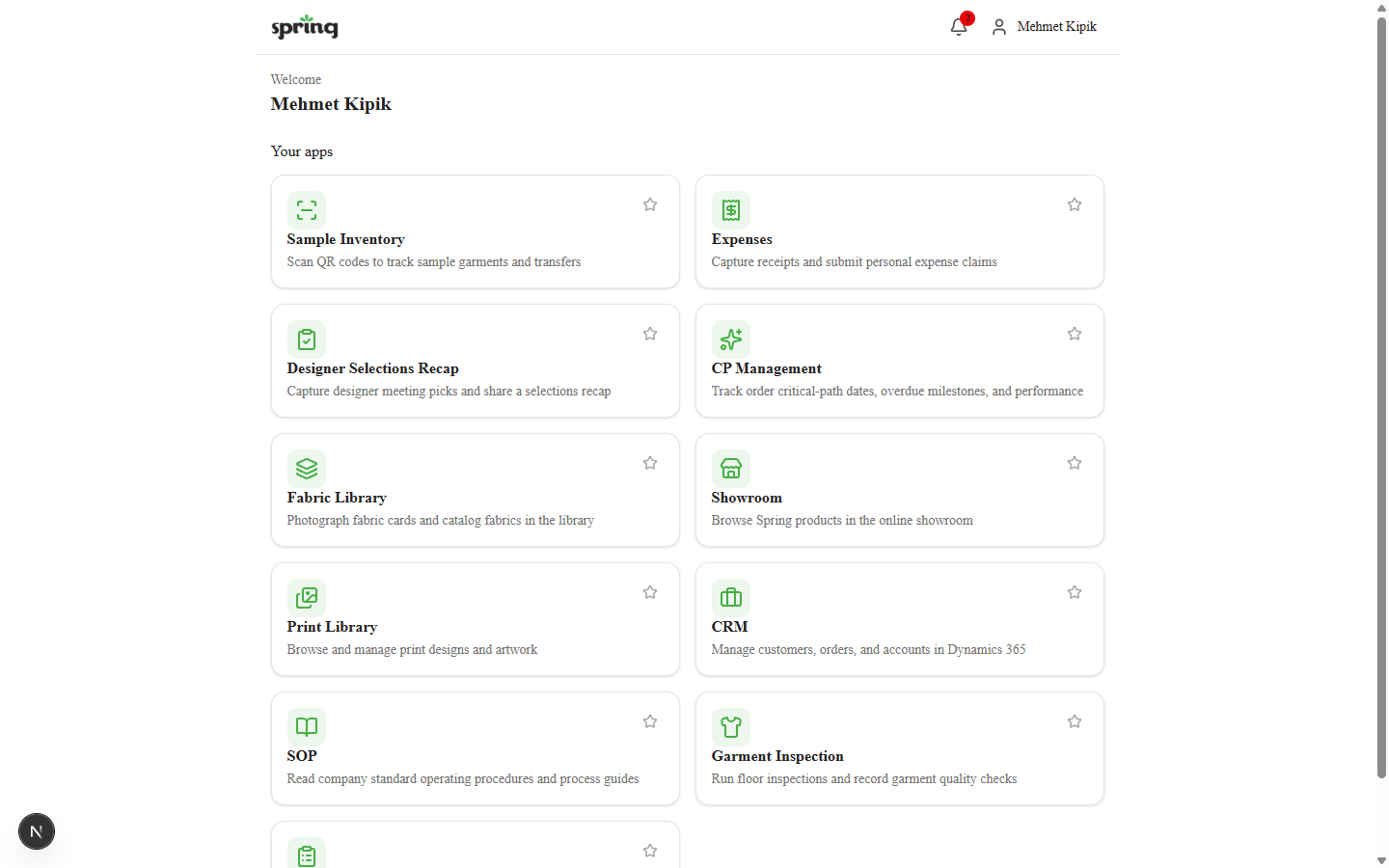
Expected result: Welcome message with your name and a Your apps grid.
The same page also shows Guest login for vendor and customer accounts. Use Employee login for your work account. After you have signed in as an employee once, later visits open Employee login directly. To use a guest account on that same phone or browser, tap Guest login on that page.
3. Use the landing menu
- Read the Welcome line to confirm you are on the correct account.
- Under Your apps, click a tile to open that mini-app. Apps you open most often move toward the top of the list on this browser.
- Use the star on a tile to mark favourites (Favorites stay in their own section at the top; both sections sort by how often you open each app).
- External apps (Showroom, Print Library, CRM, SOP) open in a new browser tab.
- Open the account menu in the header for theme (light/dark) and Sign out. Tap Spring Hub v… at the bottom of the menu to open What's new — expand or collapse each version to read it.
If you open a link you are not allowed to use, an amber banner may say you do not have access to that app.
4. How Your Changes Save
Most mini-apps save in the background. The header next to your account menu shows Saving…, All changes saved, or 1 not saved when something needs attention.
See How Your Changes Save for the full explanation — header status, failed saves, explicit Save buttons, and Inspection Reports wizard autosave.
5. Use the notification centre
The notification centre is the inbox for in-app alerts (CP Management messages and overdue items, Designer Selections comments, and staff CP reminders). It sits in the header next to your account menu.
Open notifications
- On desktop, click the bell button (Notifications). A red badge shows the unread count (capped at 99+).
- On a phone, open the account menu and choose Notifications (the badge appears on the account control).
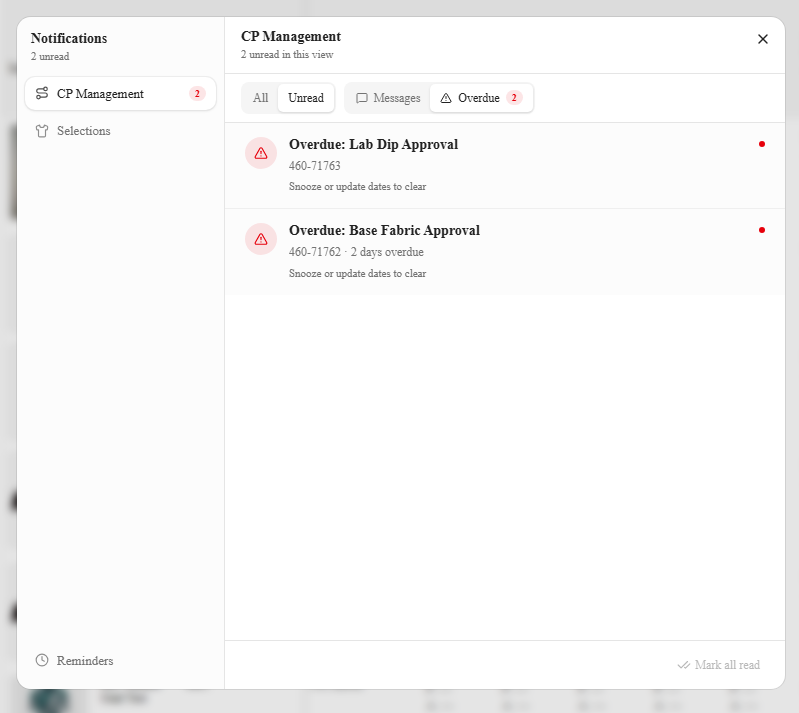
The dialog lists notifications by app. The sidebar shows Notifications with an unread count (for example 3 unread) or All caught up.
Browse by app and filter
| Sidebar | What it shows |
|---|---|
| CP Management (short label CP) | Critical-path messages and overdue alerts |
| Selections | Designer Selections Recap comment notifications |
| Reminders | Due personal CP reminders (staff only) |
Within a section you can filter All / Unread. On CP you can also switch Messages / Overdue.
Each row shows an icon, title, optional short body, relative time (or overdue helper text), and a red unread dot when unread.
What each type means
| Type | Typical meaning | Click opens |
|---|---|---|
| CP message | New shared message on an order | CP Grid for that order |
| CP overdue | Milestone past planned with no actual | Needs Attention |
| CP reminder | Personal reminder is due | Reminders |
| Selections comment | New comment on a selection sheet | That selection |
Mark read and navigate
- Click a row to mark it read (when allowed), close the dialog, and go to the linked screen.
- Use the mail control on a row to Mark as read / Mark as unread for messages and reminders.
- Use Mark all read in the footer for markable items in the current view.
Overdue alerts always count as unread and cannot be marked read in the inbox. Clear them by snoozing the item or updating dates in CP Management (footer note: Snooze or update dates to clear.). There is no delete/clear-all for the list.
Browser push (optional)
If your browser supports it and push is configured, you may see Get alerts when you're away from the app with Enable push. Allow notifications in the browser prompt. Away-from-app alerts use a generic message body for privacy; clicking the OS notification opens or focuses Spring Hub on the related screen.
Empty states
- No unread messages / No messages yet
- No unread overdue alerts / No overdue alerts
- No unread reminders / No reminder notifications yet
- Nothing unread here under a section that has no unread items
If the inbox looks empty but you expect alerts, refresh, confirm you are on the correct account, and escalate to IT if it continues (backend / identity may not be linked).
App guides
Sample Inventory
Scan QR codes to track sample garments and transfers.
Expenses
Capture receipts and submit personal expense claims.
Fabric Library
Photograph fabric cards and catalog fabrics.
Designer Selections Recap
Capture designer meeting picks and share a selections recap.
CP Management
Track critical-path dates, overdue milestones, and performance.
Inspection Reports
Create garment QC inspection reports with photo capture and AI analysis.
Test Report Check
Check lab test reports and transaction certificates against the testing manual and CRM.
Exceptions and Escalation
- Cannot sign in with Microsoft — confirm you use your work account; escalate to IT.
- Need Guest login instead — tap Guest login on the Employee login page (the home URL may keep opening Employee login until you do).
- No apps on the launcher — your CRM employee link may be incomplete; escalate to IT / platform admin.
- Coming soon tiles — not released yet; do not expect them to open on production.
- Notifications stay empty — confirm CRM / notification identity; escalate to IT / platform admin.
- Push never appears — browser may block notifications, or push is not configured in this environment.
- Red “not saved” keeps coming back after Retry — see How Your Changes Save; escalate to IT / platform admin if the reason is not clear.