Expenses
Summary
Expenses is where staff claim personal spend and company business-card charges. Capture receipts, describe spend in a short note, or upload statements. Review the draft lines, then submit them for approval in CRM.
How to
Open the app
- Sign in to Spring Hub.
- Open the Expenses tile (Capture receipts and submit personal expense claims).
- The app opens on New expense, where you create and submit claims.
New expense
Create claims from receipt photos, a short note, a business-card statement (PDF or Excel), or a bulk-import Excel file.
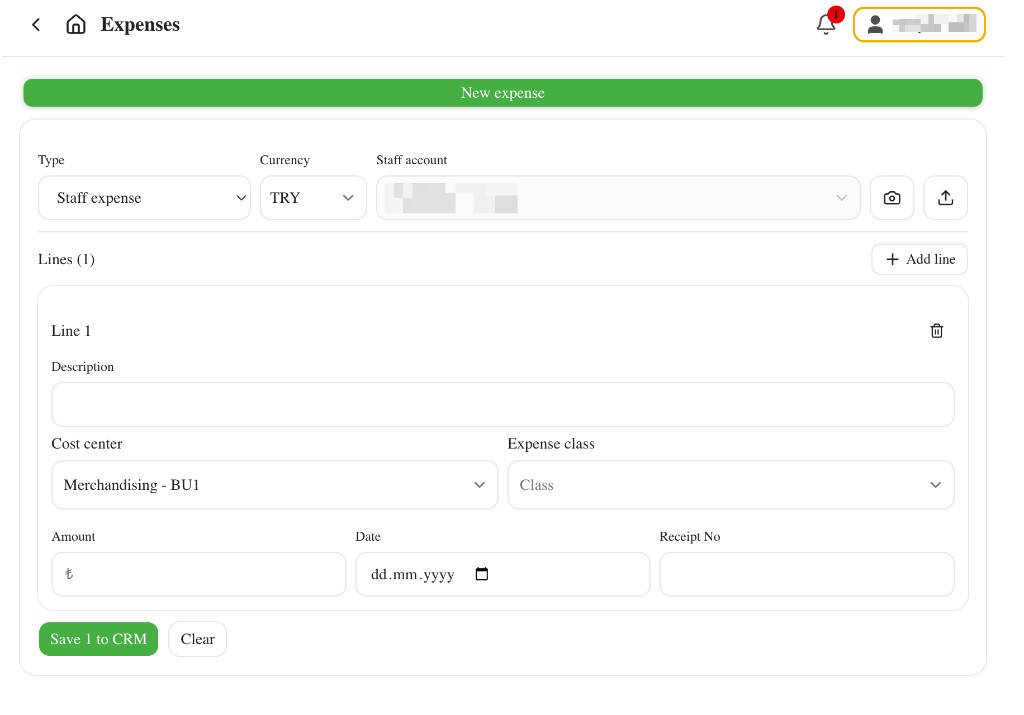
Claim from a receipt
- In Type, keep Staff expense selected.
- Tap the camera icon to take or choose receipt photo(s), or the upload icon for a PDF or Excel file (business-card imports).
- Wait while the app reads the receipt(s).
- The Staff account is chosen from the receipt currency.
- Check each line: Description, Cost center, Expense class, Amount, and Date. VAT is 0%, 5%, or 20% and is hidden when the currency is TRY.
- Use Add line if you need another expense.
- Tap Save … to CRM.
Enter without a receipt
- In Type, choose Staff expense (or Business card if it was paid on the company card).
- Choose Currency (AED, EGP, EUR, GBP, or TRY). The Staff account or Card account updates to match. USD is not available.
- In No receipt? Describe it, type what you spent in Turkish or English. Include the vendor, amount, and date if you know them. For example: Taxi to the factory with the customer, 450 TL, yesterday.
- Tap Fill with AI (or press Enter).
- Wait while the app reads your note. It adds one line per expense, with a description, date, amount, and a suggested Expense class. One note can describe several expenses.
- Check each line. Lines always use the Currency you chose in step 2.
- Tap Save … to CRM.
To fill a line by hand instead, tap Add line and complete Description, Cost center, Expense class, Amount, and Date.
Business card charges
- In Type, choose Business card.
- Upload charges with the upload icon (Upload PDF or Excel):
- PDF — a Yapı Kredi company-card statement. The app creates one draft card per charge and suggests an expense class.
- Excel (
.xls) — the Yapı Kredi Güncel Dönem İşlemleri export. Use it for interim (mid-period) card charges when only Excel is available. The result is the same as the PDF: one draft card per charge with date, merchant, amount and currency. Payments are skipped, refunds become negative Return … lines, the Card account is matched by the last 4 digits of the card, and an expense class is suggested. - Excel — a Dynamics bulk-import workbook (
.xlsx) with an Expense sheet. Each data row becomes a draft card. Type must be Business Card Expense (or blank). The app matches Account, Expense Class, Cost Centre / Cost Center, Amount, Currency, Expense Date, Description, and Receipt No from the sheet.
- Review each line (Description, Cost center, Expense class, Amount, Date, Receipt No). For statements, Description is the merchant name.
- Tap Save … to CRM. The Card account is taken from the statement or from the Excel Account column.
- If a line's currency differs from the card's currency, a warning asks you to check the amount before saving.
If a class, cost centre, or account name in Excel does not match CRM, that field is left blank. Fill it on the draft line before saving. Other Type values (Staff Expense, Company Expense, and so on) are rejected; this upload is for Business Card Expense rows only.
Lines
- Use the List view and Table view buttons next to Add line to switch layouts. Table view shows one row per line, which helps with long statements. The app remembers your choice on this device.
- Every line needs a Description. The app fills it from the receipt or from your note, for example Starbucks — coffee with the customer. Edit it if it is wrong or too vague.
- The description is saved exactly as written. Turkish characters are kept.
Travel request
When a line's Expense class is travel or hotel overseas, a Travel request field appears on that line. It links the expense to your FD Approved overseas travel request in CRM.
- The app picks the trip for you. With one approved trip, it uses that one.
- With more than one trip, it matches the place on the receipt or in your note (for example a taxi in Barcelona goes to the Spain trip, an exit fee for the United Kingdom goes to the UK trip) and the expense date against the trip dates.
- Check the trip on each line and pick another one if it is wrong.
- If you have no approved overseas trip, the field shows No active travel request and the line still saves.
After you save, a confirmation appears. Track approval status in CRM or with your manager or Finance.
Exceptions and Escalation
If OCR or Fill with AI got something wrong, or an Excel class / cost centre / account did not match, edit the line before saving.
- Could not find an expense in that note. — add the amount and what you paid for, then try again.
- Row n: Description is required. — fill Description on that line.
- Travel request is not an active request of this employee. — the trip is no longer FD Approved. Pick another trip on that line, or ask your manager or Finance to check the request in CRM.
- No active travel request although you have a trip — the request must be overseas, FD Approved and still active in CRM. Ask your manager or Finance to check it.
After save, ask your manager or Finance to correct mistakes — do not bypass approval. Escalate access issues to IT.