Fabric Library
Summary
Fabric Library is the catalogue for fabric cards. Photograph or upload cards so AI can read them, confirm the draft details (unit is required; price and currency are optional), save records, then search and browse the library under Manage. Saved records are view-only except for price updates, which are tracked in a price history table. Optional floating AI chat can help seed filters.
How to
Open the app
- Sign in to Spring Hub.
- Click Fabric Library.
- Use the top navigation to move between Create and Manage.
Create
Photograph or upload fabric cards. After each image is uploaded, AI scans the card and fills every readable field it can detect. When a photo shows multiple colour sheets with different codes, AI creates one draft row per variant. Confirm those values, set Unit (Meter or Kilogram), optionally enter price and currency, then save the records.
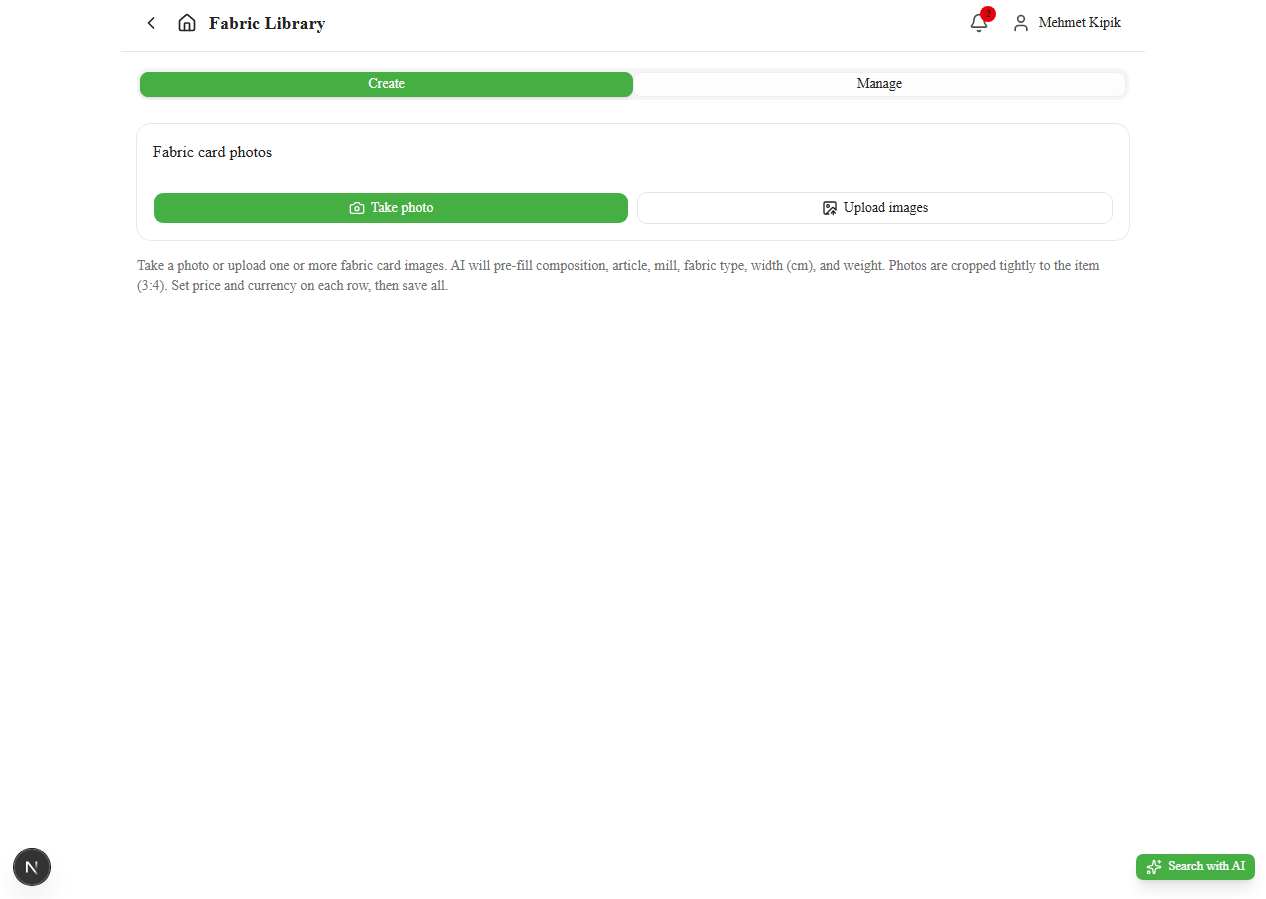
- Open Create.
- Take photo or Upload images (add more as needed).
- Wait while AI reads each image and fills the draft row(s) (composition, article, mill, variant/colour, type, width, weight, and any other readable details).
- If the header sticker was hard to read, a prompt asks for a close-up photo of the specification label. You can also use Add close-up photo on any ready row to re-run OCR with a close-up.
- Review and correct the AI-filled fields if needed.
- Choose Unit (Meter or Kilogram). Price is optional; if you enter a price, also set currency.
- Click Save N records to Fabric Library.
- Use Add more fabrics or retry OCR on failed rows if prompted.
Many cards at once: You can select up to 50 images in one go (Upload images). The app reads them in groups and shows progress while OCR runs. Nothing is stored in the library until you click Save — keep the Add fabrics tab open until saving finishes. If the browser closes or reloads, unsaved rows are lost. On phones or older laptops, upload 15–20 cards at a time, save, then Add more fabrics for the next batch if the tab feels slow.
Each card saves on its own in the background: rows show Saving… over the photo, then disappear from the list as they land. You can keep photographing new cards while earlier ones are still saving. A rejected card stays in the list marked in red with the reason.
Manage
Search and browse existing fabric records. Records cannot be edited after save except for price.
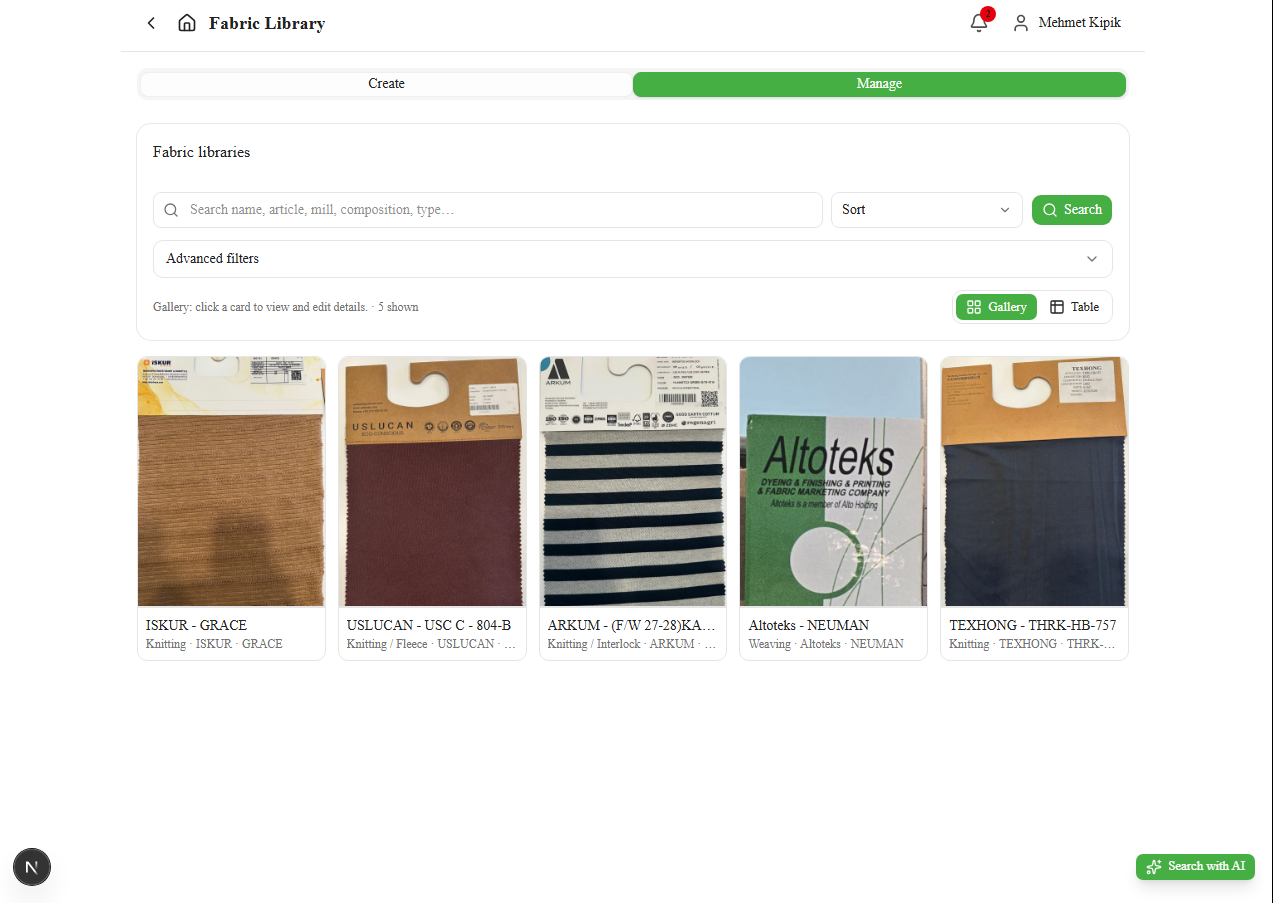
- Open Manage.
- Search and filter (mill, article, composition, type, currency, ranges).
- Switch table or grid view. Click a row or gallery card to open details.
- In the detail view, use Update price to change the price. The dialog closes at once and the new price shows straight away while it saves; each update is recorded in Price history as
{old price} -> {new price}. - Open the image gallery or Delete with confirmation when required.
Optional: the floating AI chat can help seed filters and jump to Manage.
Exceptions and Escalation
If OCR fails repeatedly, enter fields manually or retake a clearer photo (including a close-up of the header sticker). Escalate catalogue or access issues to Design / IT.